
Arjun runs a 12-person software studio in Pune. In October he bills clients in the US and Germany, the money lands, and then his bank asks something new: where is the export declaration form (EDF) for these invoices?
An EDF is the declaration an exporter gives their authorised dealer (AD) bank. It states what was exported, what it was worth, and the date by which the payment will be realised in India. Under RBI's 2026 export regulations, exporters of services are expected to file one too, not only exporters of goods.
The official form is long and written with goods in mind. This guide shows how to fill it for services in about ten minutes with PayGlocal's free EDF Generator, and what each field means, so you can check the result before it reaches your bank.
An EDF is the declaration an exporter gives their authorised dealer (AD) bank. It states what was exported, what it was worth, and the date by which the payment will be realised in India. Under RBI's 2026 export regulations, exporters of services are expected to file one too, not only exporters of goods.
The official form is long and written with goods in mind. This guide shows how to fill it for services in about ten minutes with PayGlocal's free EDF Generator, and what each field means, so you can check the result before it reaches your bank.
TL;DR
- An export declaration form (EDF) tells your bank what you exported and when the money will come in.
- For services, your invoices go in Section 2B of the form.
- PayGlocal's free EDF Generator fills the form from your invoices in six steps.
- You check the details before submitting the form to your bank.
What is an export declaration form (EDF) for services?
An Export Declaration Form (EDF) is a declaration an Indian exporter gives their authorised dealer bank, stating the value of the exports and when the payment will be received. For service exports, each invoice goes in Section 2B of the form, and the exporter declares that the full value will come back to India.
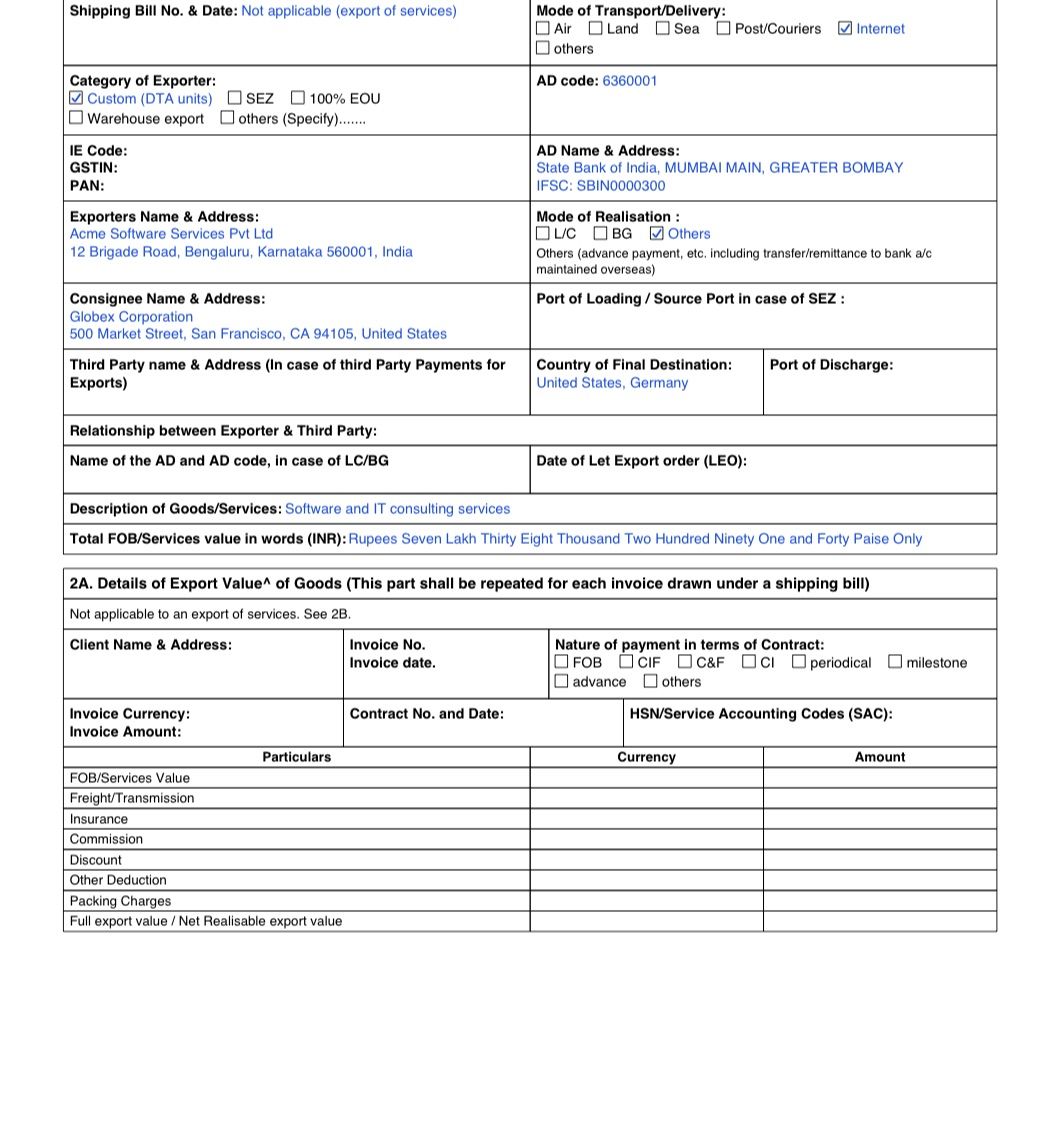
Goods exporters fill Section 2A, which asks for shipping bill details, freight and insurance. A software or consulting business has none of that. On a services EDF, Section 2A stays blank (the form itself says it is not applicable to services) and Section 2B carries the client, invoice, SAC code and value.
Section 4 is the declaration the exporter signs. It also carries the date by which the payment will be realised, which is the one date your bank will look at twice.
You may also see the EDF referred to as an export value declaration form. The official name is Export Declaration Form.
Who needs to file an EDF, and by when?
If you invoice customers outside India for software, design, consulting or any other service, plan on filing an EDF. Most exporters group a month of invoices into one form, and the generator is built that way: you can add up to 20 invoices to a single EDF.
Under the 2026 regulations, the usual filing deadline is within 30 days from the end of the month in which the invoices were raised. Exporters of services other than software may also have the option to submit the EDF on or before receiving payment. Confirm which timeline and filing process applies with your AD bank before the month closes.
The generator says the same on its last screen. It prepares the form, and it does not file anything for you.
What do you need before you start?
Gather these first and the whole thing takes minutes, not an afternoon:
- Your invoices for the month, as PDF, PNG or JPG, up to 10 MB each. No file handy? You can type an invoice in by hand.
- Your PAN and registered business address.
- The IFSC of the AD bank branch that will realise your payments, and the AD code your bank gave you. If you do not have an AD code, ask the branch.
- Optional: GSTIN, your import-export code (IEC) and any contract number.
- A plain-words description of the service. The SAC code (Service Accounting Code) can be searched inside the tool.
How do you generate an EDF with the free EDF Generator?
The generator walks you through six steps. You can leave at any point and pick up later, because your draft is saved on your device when draft saving is enabled.
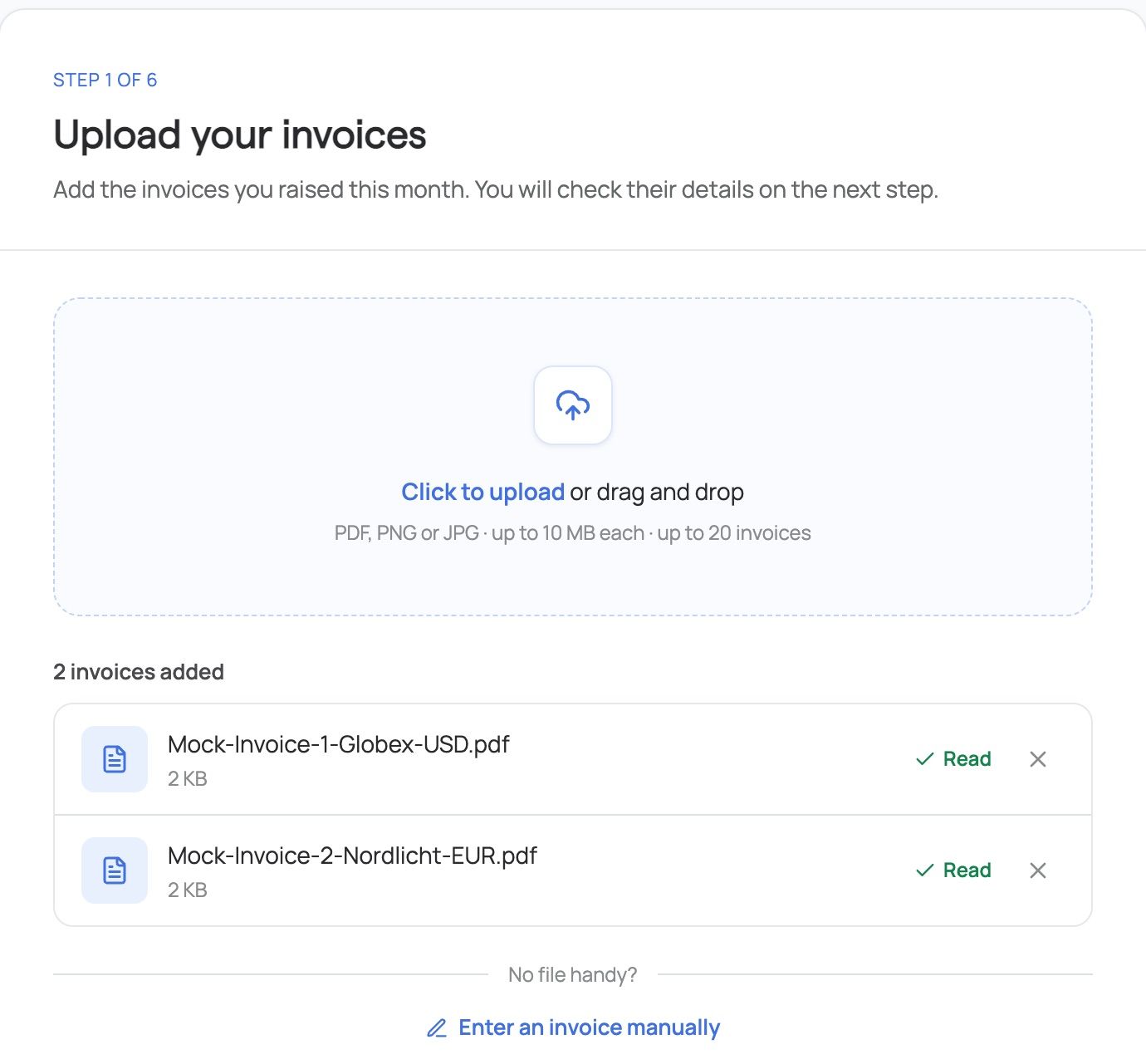
Step 1: Upload your invoices
Drop in up to 20 files. For each one, the tool reads the invoice number, date, currency, amount, client name and address, and the service description, and fills them in. If a file cannot be read, its card says so and you type that one yourself.
Step 2: Check the invoice details
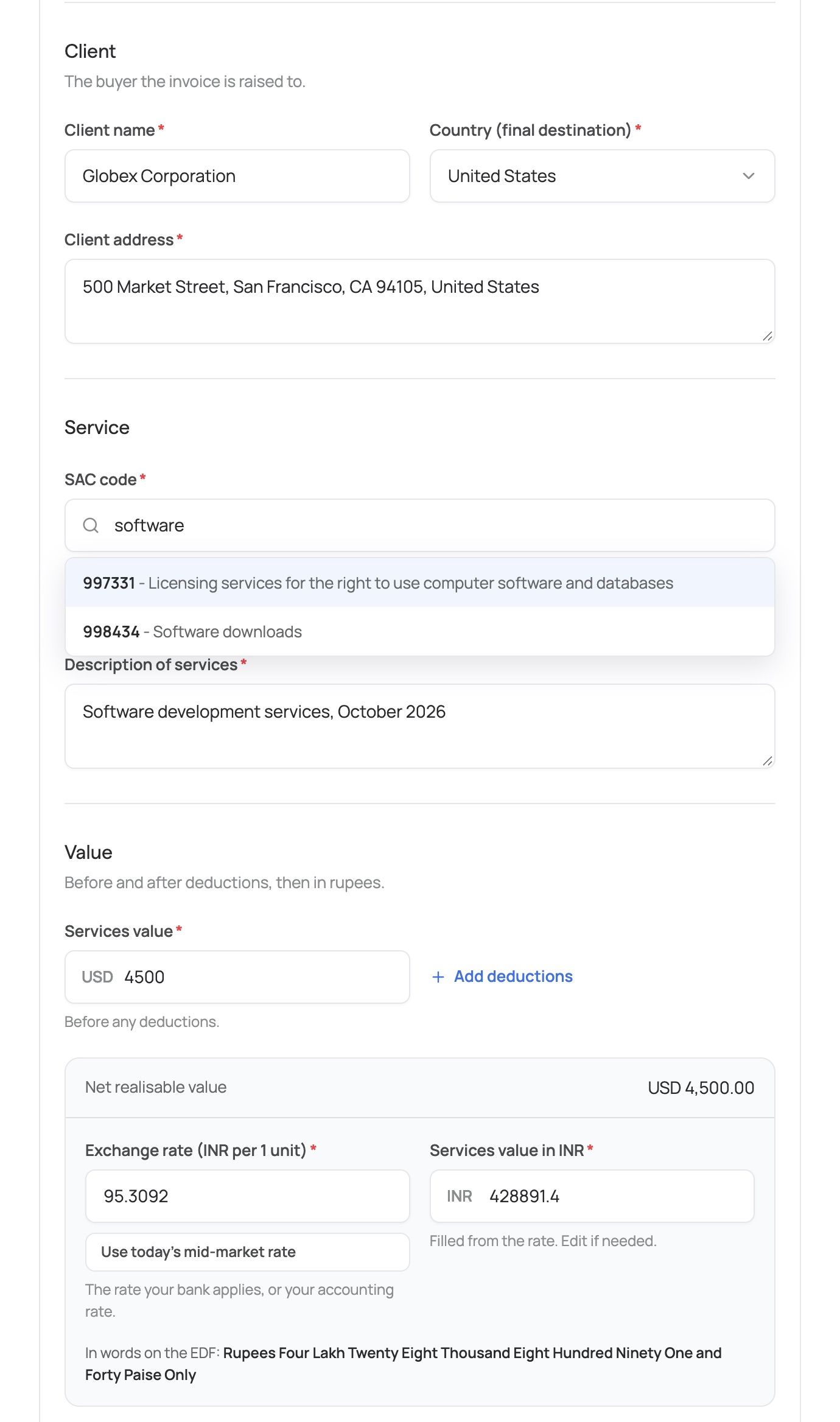
Treat the filled-in values as a first draft. Confirm every amount and date against the invoice, pick the SAC code, and set the exchange rate.
Step 3: Add your exporter and bank details
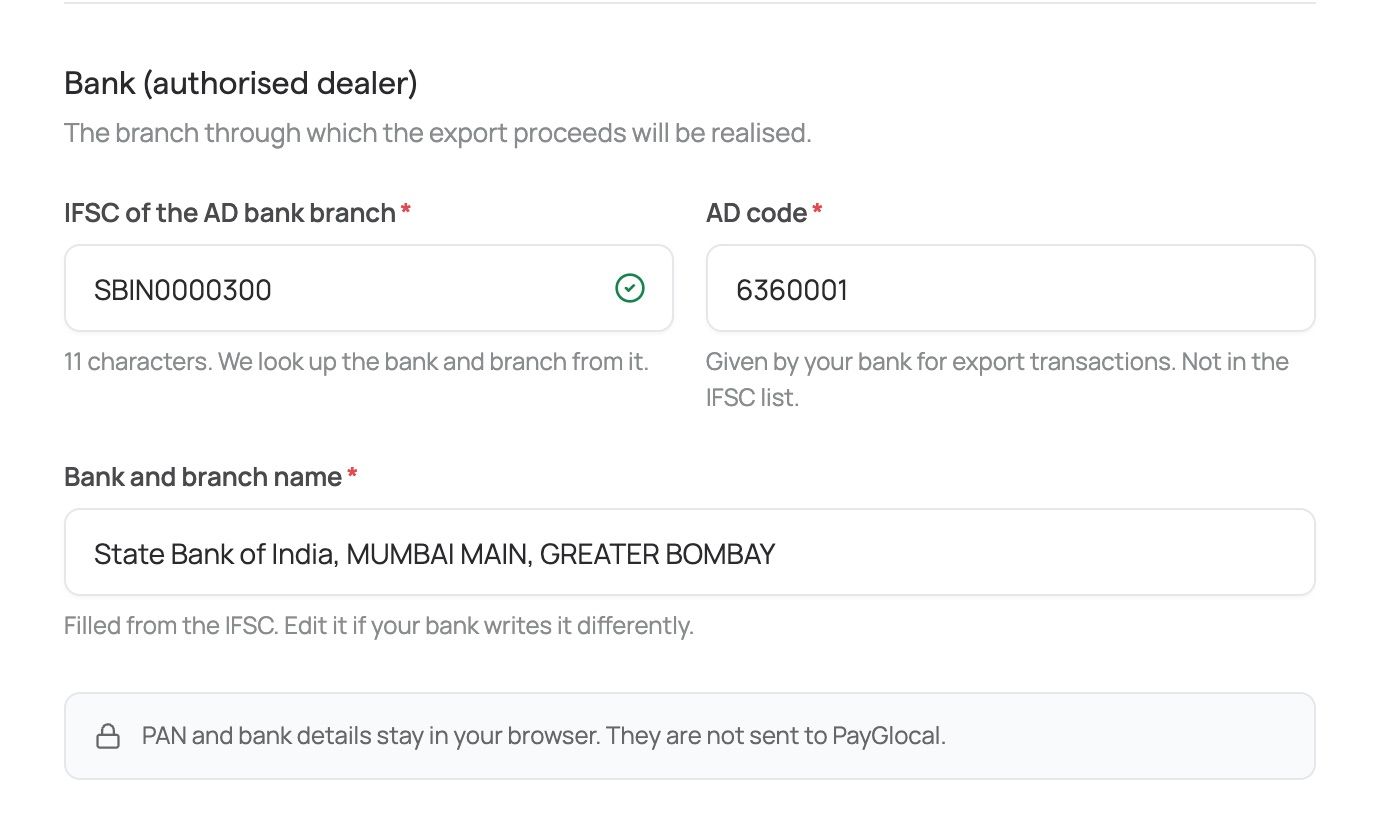
Enter your PAN and address, choose your category, then type the IFSC. The bank and branch name fill in from the code. Add your AD code.
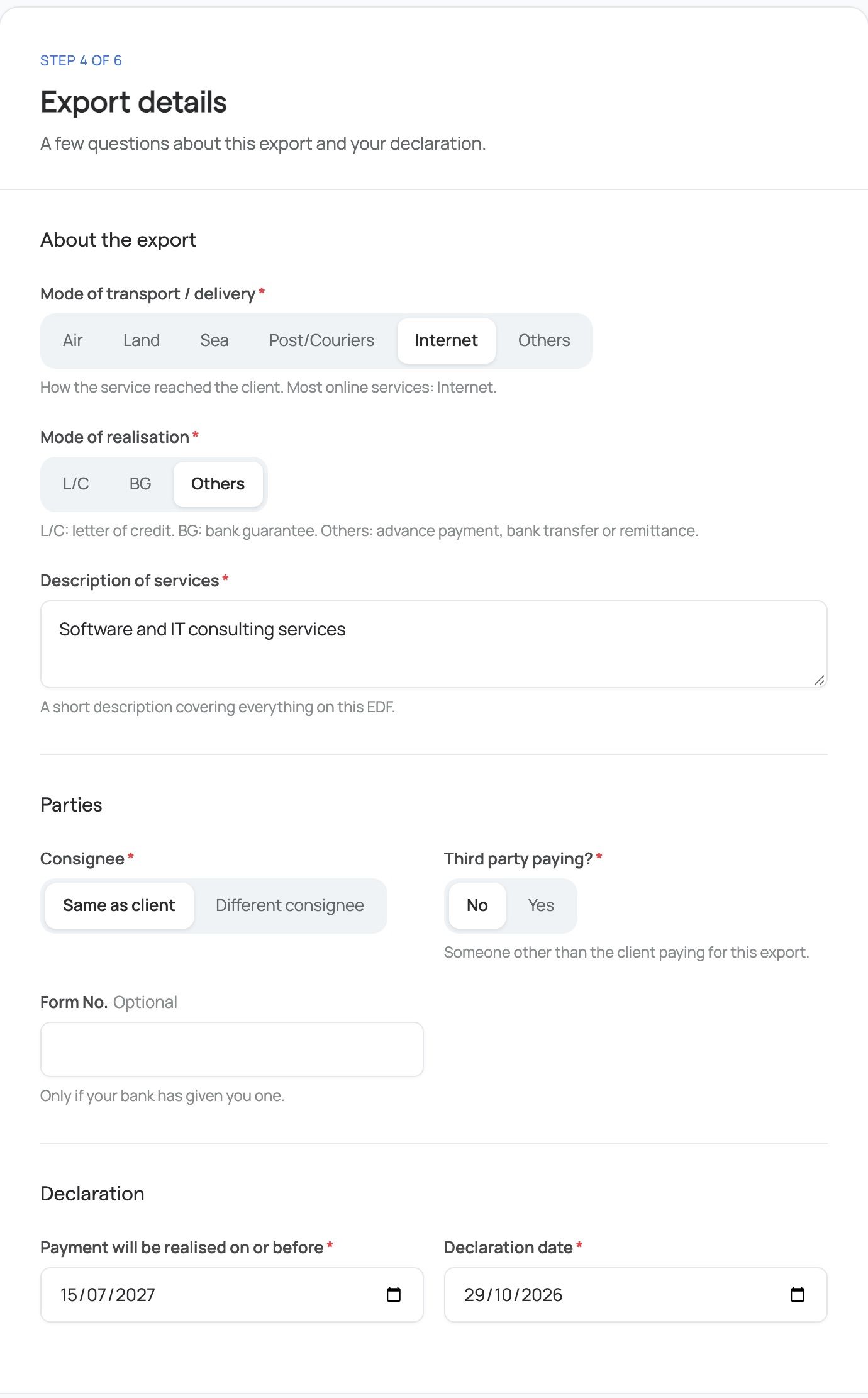
Step 4: Fill in the export details
Choose how the service is delivered (for digital services this is usually Internet), how payment will be realised, who the consignee is, whether a third party pays, and the date by which the payment will be realised. The tool suggests that date, and you can change it.
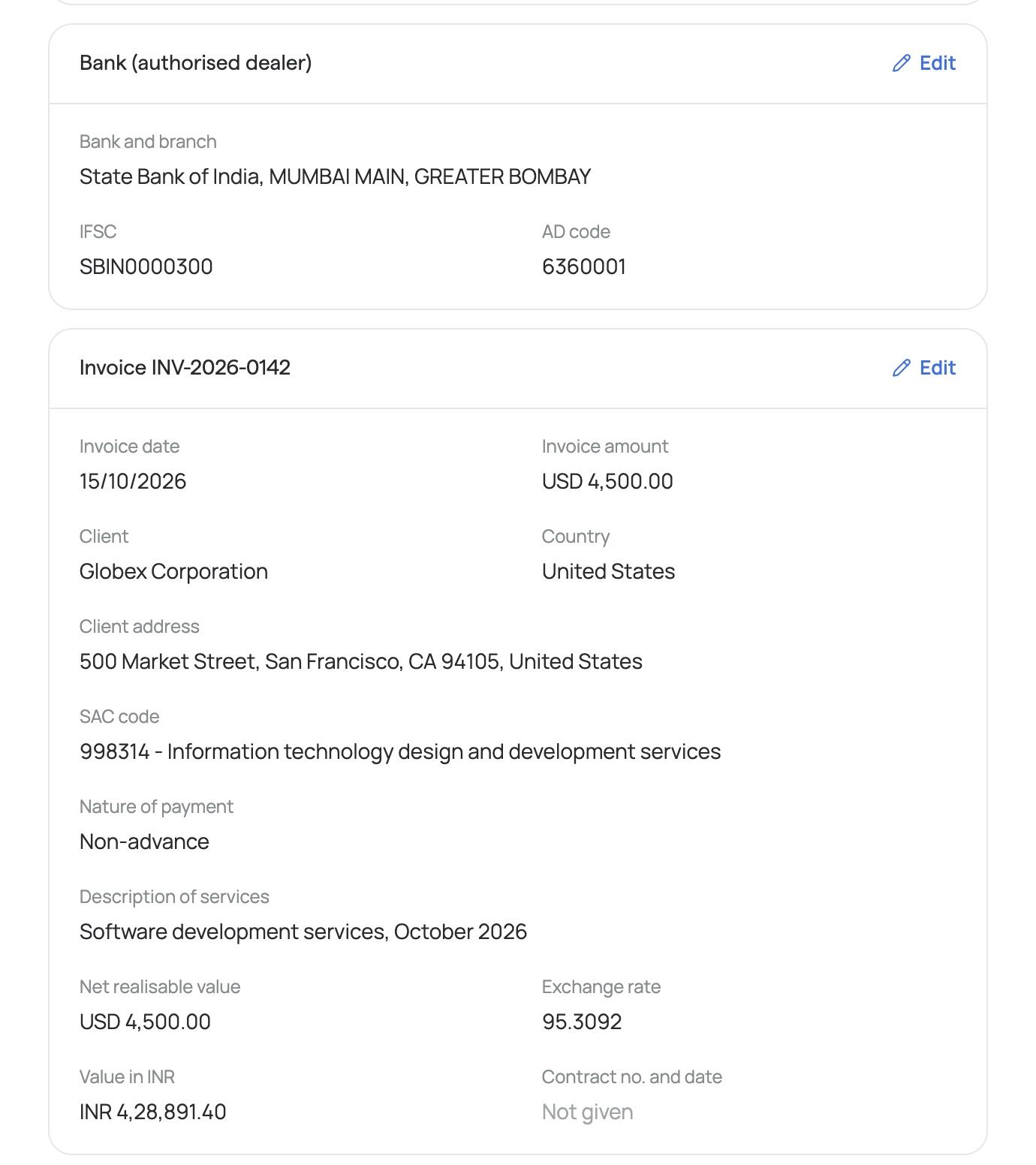
Step 5: Review and confirm
Every answer appears on one page. Edit any section without losing progress, then confirm that you checked the details against your invoices.
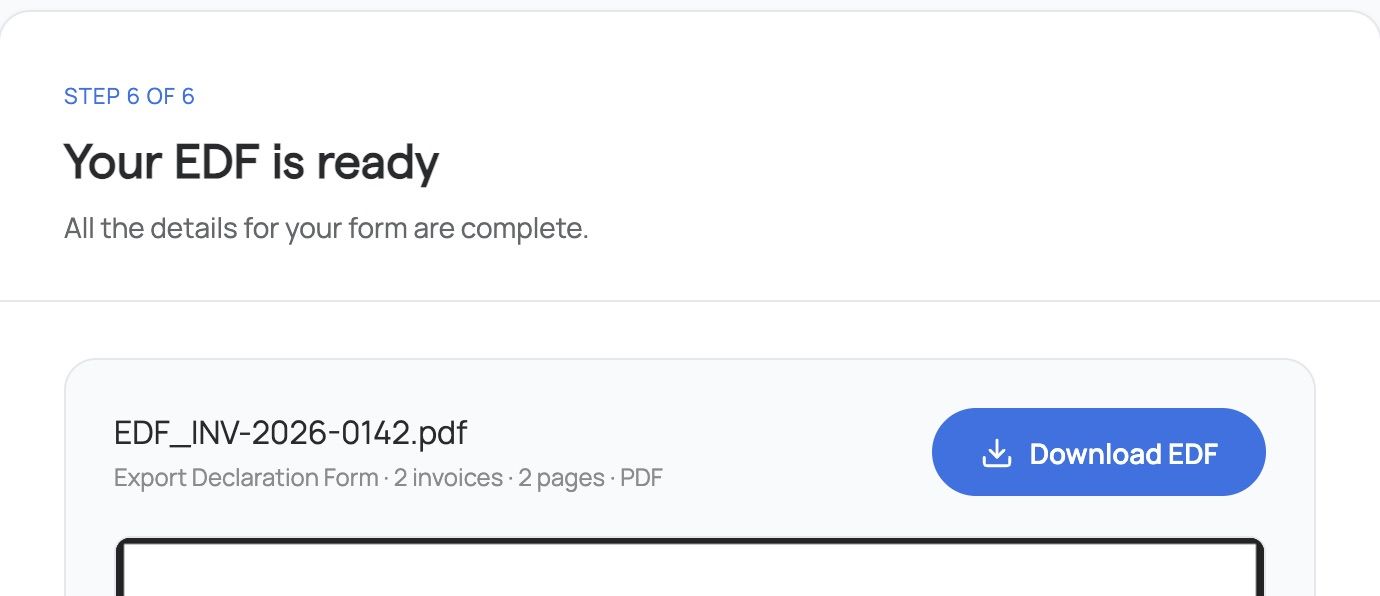
Step 6: Download the PDF
Preview the finished form, download it, and take it to your AD bank. The tool does not submit anything to your bank or to RBI.
How do SAC codes, exchange rates and bank fields work?
SAC code
The SAC picker searches the official list of service codes by number or by words, so typing “software” finds the software codes. If your code is a six-digit number starting with 99 that is not on the list, you can still use it. The tool flags it so you confirm the code with your bank.
Exchange rate
One tap fills today's mid-market rate for your invoice currency, and the rupee value updates as you change it. For example, USD 4,500 at 95.3092 gives INR 4,28,891.40. A mid-market rate is a reference rate. Your bank may apply a different one, so use the rate your bank applies and overwrite the field if it differs.
IFSC and AD code
Type the 11-character IFSC and the bank and branch name appear. Edit them if your bank writes the name differently. The AD code comes from your bank, and the tool cannot look it up for you.
What happens to your data in the generator?
The generator is free and needs no sign-up. What you type in, including your PAN and bank details, stays in your browser. Uploaded invoices are read to fill the form: digital PDFs are read in your browser and only their text is sent to the reading service, while scans and photos are sent as images.
Your draft is kept on your device for 7 days if saving is enabled, so you can come back to it. You can turn that off, or delete the draft, from the side panel.
What should you check before you send it to your bank?
A generated form is only as good as the checking you do on it. Before you hand it over:
- Client names, invoice numbers, dates and amounts match the invoices. Be extra careful with scans, where reading is least reliable.
- The rupee value uses the exchange rate your bank applies.
- Each SAC code fits the service, and any flagged code has been confirmed.
- The realise-by date is the one your bank expects. The tool suggests 9 months after the earliest invoice, or 12 months if you bill in INR.
- Section 2A is blank and your invoices sit in Section 2B.
Some banks use their own format or portal. Ask your AD bank whether it accepts this PDF as is or wants the details entered on its side.